
Managing Agents
Agents are the AI personalities that power your Selu assistant. You can install them from the marketplace, configure their models and permissions, and keep them updated.
Installing agents
Section titled “Installing agents”From the marketplace
Section titled “From the marketplace”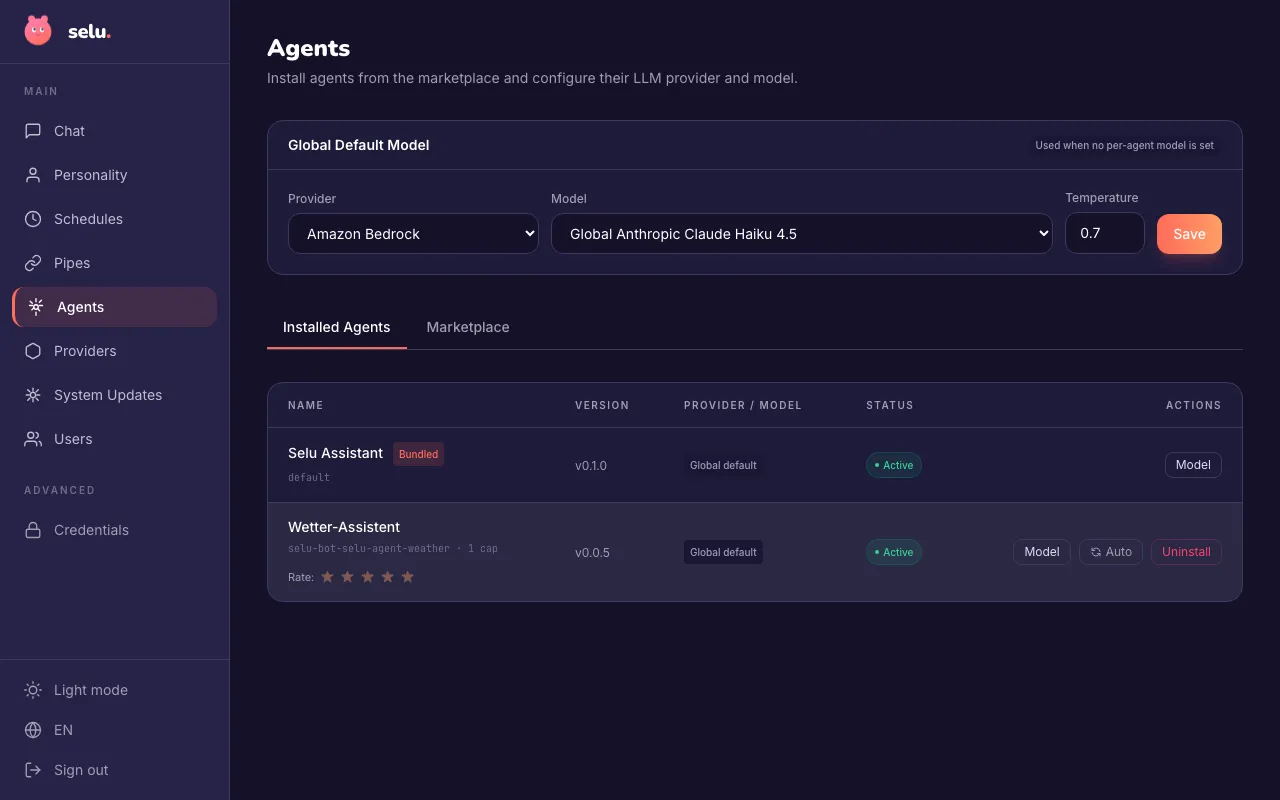
- Go to Agents in the sidebar
- Click the Marketplace tab
- Browse available agents or use the filter buttons:
- All — Show every agent
- Available — Only uninstalled agents
- Installed — Only agents you have
- Update available — Agents with newer versions
- Click Install on any agent you want
Setup wizard
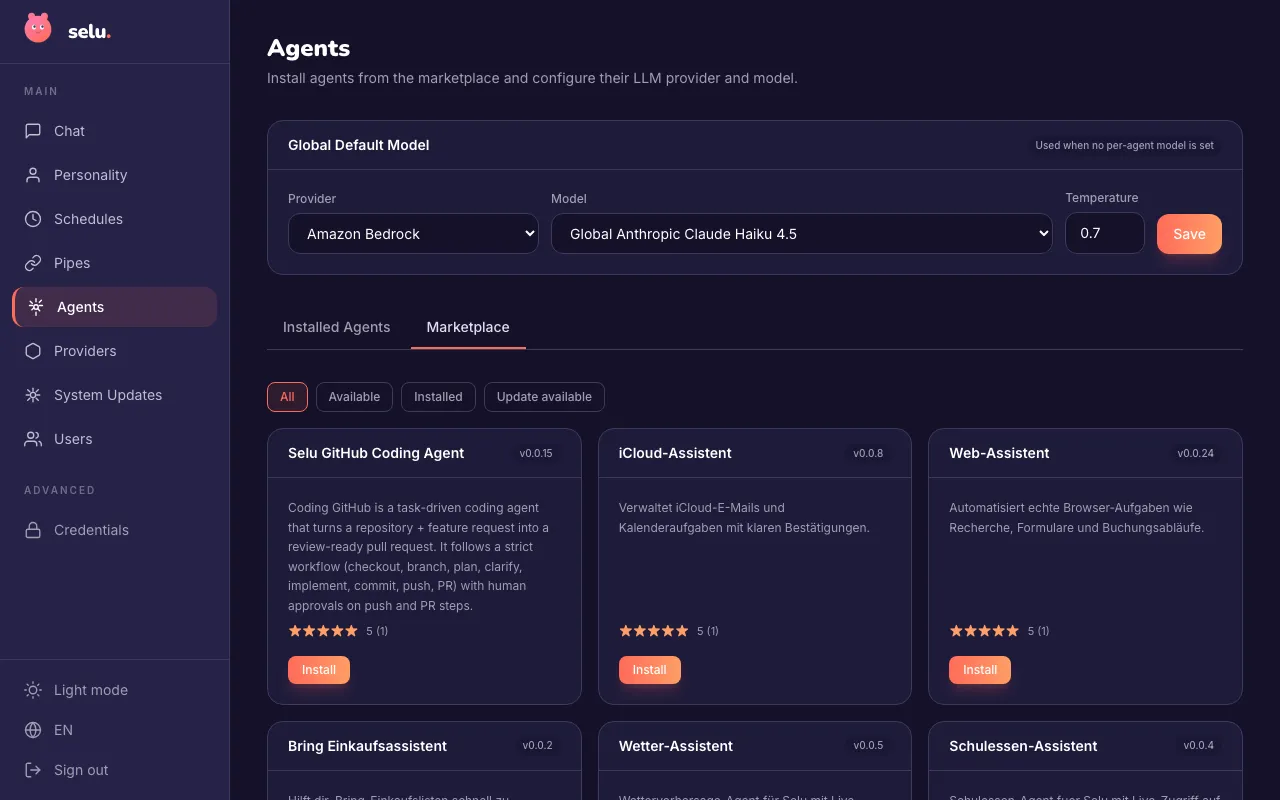
Section titled “Setup wizard”After installation, most agents need setup:
- Configuration — Enter API keys or other settings the agent needs
- Tool permissions — Choose how the agent can use its tools:
- Allow — Use freely without asking
- Ask — Request permission each time
- Block — Never allow
- Model assignment — Pick which LLM provider and model this agent uses
Agent behavior
Section titled “Agent behavior”Session management
Section titled “Session management”Agents handle conversations differently based on their session settings:
Shared sessions (default)
Section titled “Shared sessions (default)”Most agents use shared sessions, which means:
- Multiple conversation threads with the same agent share the same container
- Capabilities and workspace data persist across threads
- More efficient resource usage
- Good for stateless agents like weather or search assistants
Per-thread isolation
Section titled “Per-thread isolation”Some specialized agents use per-thread isolation:
- Each conversation thread gets its own dedicated containers
- Workspace data is completely isolated between threads
- Uses more resources but prevents interference
- Essential for coding agents or workspace managers
Complex task steps
Section titled “Complex task steps”Each agent has a configurable limit on how many tool-call steps it can perform in a single turn. This prevents runaway loops while allowing complex multi-step workflows:
- Default limit: 32 steps per turn
- Per-user control: You can set custom limits for each agent on your account
- Unlimited option: Set to 0 to remove the limit entirely
- Administrative defaults: Admins can set system-wide defaults
You can adjust this on the agent’s Overview tab under “Complex Task Steps.”
Updating agents
Section titled “Updating agents”Background updates with live progress
Section titled “Background updates with live progress”Agent updates run in the background with live progress tracking:
- Click Update next to any agent with an available update
- Review the update information in the confirmation modal
- Click Confirm Update to start the background process
- Watch the real-time progress card that appears at the top of the page — it reflects actual Docker image download progress, not a timer
- When complete, you’ll see a success notification or be redirected to setup if new permissions are needed
The update wizard only prompts for setup when the agent actually needs new permissions or credentials — routine updates complete automatically.
Capability image status
Section titled “Capability image status”On each agent’s Overview tab, every capability shows its current image status:
- Files ready — The Docker image is present and the capability can start immediately
- Download needed — The image is missing from Docker but can be restored
- Status unavailable — Selu couldn’t check the image status
If an image is missing, Selu downloads it automatically the next time the capability is needed. You can also click Download now to restore it proactively before the agent is used.
Auto-updates
Section titled “Auto-updates”Enable auto-updates for hands-free maintenance:
- Find the Auto toggle button next to any installed agent
- Click to enable (green) or disable (gray)
- Selu will automatically update these agents when newer versions are released
Configuring agents
Section titled “Configuring agents”Model assignment
Section titled “Model assignment”Each agent can use a different LLM provider and model:
- Go to the Agents page
- Click Model next to any agent
- Choose a provider and model from the dropdown
- Set the temperature (0.0 = focused, 1.0 = creative)
- Click Save
Leave the provider blank to use the global default model.
Agent detail pages
Section titled “Agent detail pages”Click any agent name to see detailed information organized into focused tabs:
Overview tab
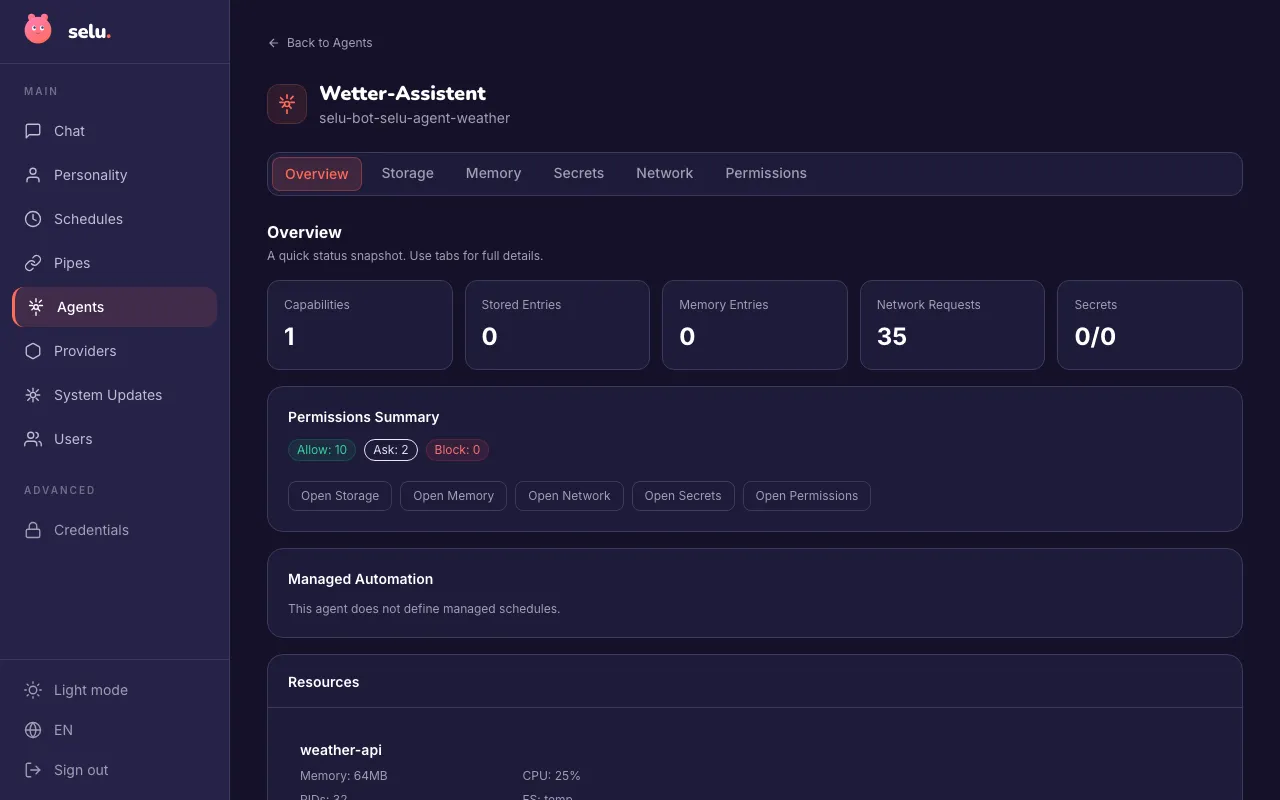
Section titled “Overview tab”The Overview tab gives you a quick status snapshot with key metrics:
- Capabilities — Number of tools/services this agent uses, with image status for each
- Stored entries — How much persistent data the agent has saved
- Memory entries — Long-term contextual notes the agent has saved
- Network requests — Total outbound API calls made
- Secrets — Credential status (how many are set vs. missing)
You’ll also see:
- Permissions summary — Count of Allow/Ask/Block permissions
- Resource usage — Memory, CPU, and process limits per capability
- Complex task steps — Current tool-loop iteration limit for this agent
- Quick links — Jump directly to Storage, Memory, Secrets, Network, or Permissions tabs
Storage tab
Section titled “Storage tab”View and manage the persistent data your agent has saved:
- See all key-value pairs the agent stored using
store_set - View timestamps showing when each entry was last updated
- Delete individual entries you no longer need
- Admins can see data from all users; regular users see only their own
Memory tab
Section titled “Memory tab”Inspect the agent’s long-term memory notes:
- View contextual information the agent has remembered using
memory_remember - See tags and source information for each memory entry
- Delete memories that are no longer relevant
- View when each memory was last updated
- Admins can see memories from all users; regular users see only their own
Network tab
Section titled “Network tab”Monitor and control your agent’s external connectivity with granular per-capability controls.
Network access control
Section titled “Network access control”For each capability, you can override the agent’s default network behavior:
- Allow — Let this capability access the network (respects host allowlists)
- Deny — Block all network access for this capability
Host-level controls
Section titled “Host-level controls”For capabilities with allowlist-based networking, you can control access to specific hosts.
Default hosts come from the agent’s configuration — you can set any to Deny to block a specific service.
Custom hosts let you add your own rules:
- Enter a host (like
pypi.org:443orapi.example.com) - Click Add to create a custom allow rule
- Toggle between Allow and Deny for any custom host
- Click Remove to delete entries you no longer need
Network activity log
Section titled “Network activity log”View the last 100 network requests to monitor agent behavior:
- Timestamps — When each request was made
- Method & host — What endpoint was accessed
- Port — Which port was used
- Status — Whether the request was Allowed or Denied
- Capability — Which tool made the request
Secrets tab
Section titled “Secrets tab”Manage credentials and API keys that your agent needs:
- Each capability shows its declared secrets with descriptions
- See which secrets are Required vs Optional
- Check if secrets are Shared (system-wide) or Personal (per-user)
- Enter credential values directly in the form fields
- Click Save to store them securely
Each secret shows a description explaining what it’s for and where to get it, plus a status indicator and the timestamp of the last update.
Permissions tab
Section titled “Permissions tab”Configure tool access controls:
- Set global defaults (admins only)
- Create personal overrides for your account
- Manage both capability tools and built-in tools
All agents have access to these built-in tools:
- Delegate to agent — Hand off tasks to other specialist agents
- Store get/set/delete/list — Persistently store key-value data between conversations
- Memory remember/forget/search/list — Save and retrieve long-term memory notes
- Set reminder — Schedule one-time future actions
- Set schedule — Create recurring automated tasks
How memory works
Section titled “How memory works”Selu keeps three separate kinds of memory. Understanding the difference helps you know what your agents remember and why.
About you
Section titled “About you”About you contains stable facts about you as a person — your name, location, job, preferences, and so on. Every agent always has this information, on every turn, without needing to search for it. It’s updated automatically as agents learn things about you from conversation.
You can view and edit your profile on the About page in the app.
Shared notes
Section titled “Shared notes”Shared notes are searchable context that any agent can save and retrieve. When an agent uses memory_remember, it’s writing a note here. Any of your agents can search these notes with memory_search when they think past context is relevant.
Notes are shared across agents because useful context (like “I’m working on a website redesign for Client X”) should be available to all your agents, not just the one that first learned it. The agent that saved a note is recorded as provenance but doesn’t own the note.
Agent lessons
Section titled “Agent lessons”Lessons are behavioral guidance specific to one agent. After enough interactions, an agent reflects on patterns in how it’s been working with you and proposes lessons — things like “prefers concise answers” or “always check the calendar before scheduling.” Lessons with strong evidence activate automatically (up to ten at a time); uncertain ones appear as suggestions you can review, activate, or remove.
Lessons are separate from notes because they change how one agent behaves, not what facts are available.
Managed automation
Section titled “Managed automation”Some agents support managed automation — pre-configured schedules that the agent author has designed for common use cases.
Enabling automation
Section titled “Enabling automation”If an agent supports automation, you’ll see a Managed Automation panel on its Overview tab:
- Click on any agent name to open its detail page
- Look for the Managed Automation section
- Review the automation requirements:
- At least one active pipe must use this agent as default
- All required credentials must be set
- Click Enable automation if all requirements are met
Disabling automation
Section titled “Disabling automation”To turn off managed automation, go to the agent’s detail page, find the Managed Automation panel, and click Disable automation. This turns off all managed schedules but doesn’t delete them — you can re-enable later.
Storage and memory
Section titled “Storage and memory”Agents can persistently store information in two ways:
Storage (key-value data)
Section titled “Storage (key-value data)”Agents use built-in storage tools for structured data that survives container restarts:
- Sync checkpoints — where they left off with external services
- User preferences — your settings and configuration
- Bookmarks — important URLs or resources
- State management — context across long-running tasks
View stored data on the Storage tab of any agent’s detail page.
Memory (long-term notes)
Section titled “Memory (long-term notes)”Agents can save and search contextual memories:
- Conversation insights — important facts from past discussions
- User context — your preferences built over time
- Project history — progress on ongoing work
View memory entries on the Memory tab of any agent’s detail page.
Both storage and memory are private to each user. Your data is never shared with other users or agents.
Schedules and reminders
Section titled “Schedules and reminders”Schedule threads
Section titled “Schedule threads”Each schedule gets its own dedicated thread in your chat sidebar, separate from your regular conversations. This keeps your chat history clean — scheduled runs appear in a Schedules section rather than mixed in with your normal threads. Each schedule reuses the same thread across runs, so you can scroll back through its history.
Agent pinning
Section titled “Agent pinning”When an agent creates a schedule or reminder, that schedule is pinned to that agent. Even if you later change your pipe’s default agent, pinned schedules keep using their original agent.
One-time reminders
Section titled “One-time reminders”When you ask an agent to remind you of something, it uses the set_reminder tool:
“Remind me to check the weather next Sunday morning”
The agent parses the timing, converts it to your timezone, and schedules the reminder. When it fires, the same agent executes the task.
Recurring schedules
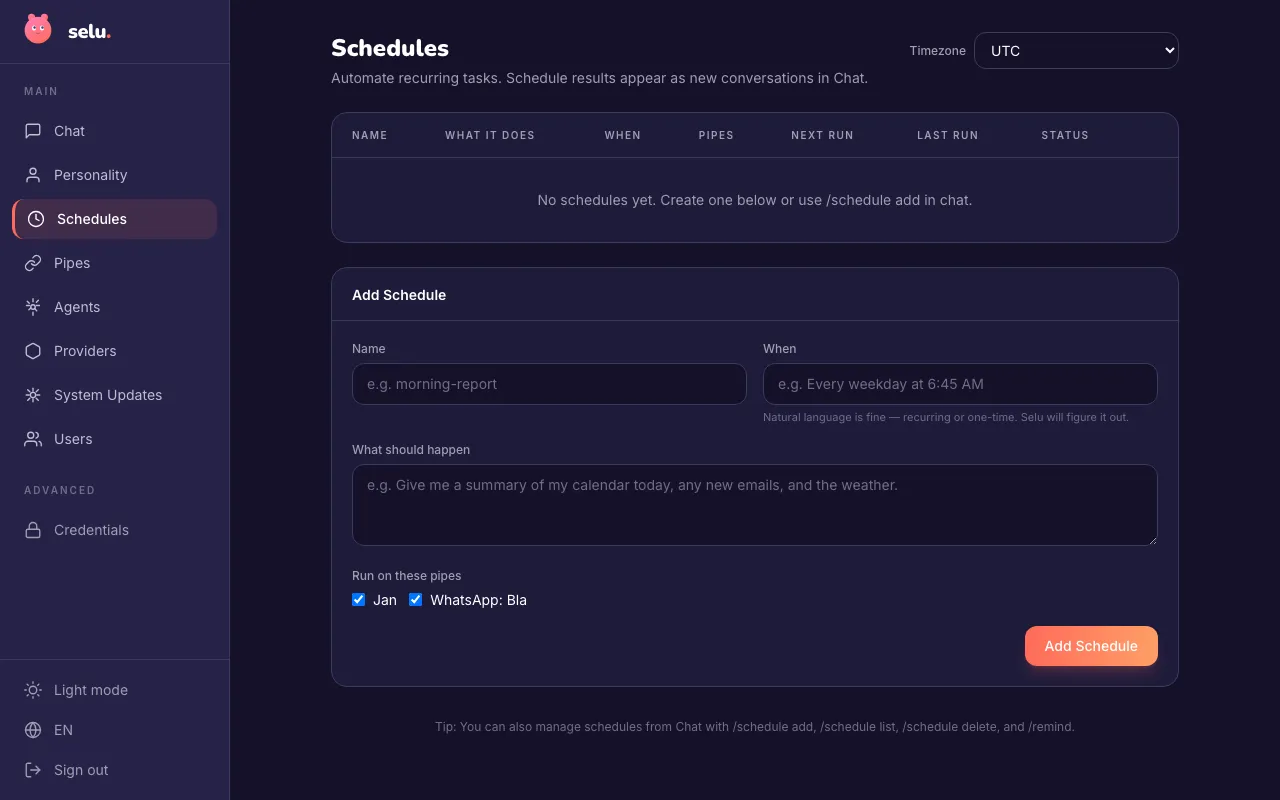
Section titled “Recurring schedules”For repeated tasks, agents can use the set_schedule tool or you can use the /schedule command or the Schedules page directly.
Both reminders and recurring schedules appear on the Schedules page where you can manage, pause, or delete them.
Global settings
Section titled “Global settings”Default model
Section titled “Default model”Set a fallback model for all agents:
- Go to the Agents page
- Find Global Default Model at the top
- Choose a provider, model, and temperature
- Click Save
Troubleshooting
Section titled “Troubleshooting”Agent won’t start
Section titled “Agent won’t start”- Check that all required secrets are set on the Secrets tab
- Verify the agent completed setup successfully
- If a capability shows Download needed, click Download now to restore the image
Update failed
Section titled “Update failed”- Ensure Docker is running and accessible
- Check your internet connection
- Try the update again — Docker image downloads resume from where they left off
Tools not working
Section titled “Tools not working”- Check tool permissions on the Permissions tab
- Verify any required API keys are configured on the Secrets tab
- Look for Ask permissions that might need approval
Network issues
Section titled “Network issues”- Check the Network tab for denied requests in the activity log
- Verify that network access is set to Allow for the capability having trouble
- Add custom host entries if the agent needs access to services not in its default allowlist
Conversations interfering with each other
Section titled “Conversations interfering with each other”Some agents (like coding assistants) use per-thread isolation to prevent this. Check the agent’s session mode on the Overview tab. If you need isolation for an agent that doesn’t have it, contact support.
Schedules not executing correctly
Section titled “Schedules not executing correctly”- Schedule threads appear in the Schedules section of your chat sidebar, separate from regular conversations
- Check the Schedules page to see which agent owns each schedule — schedules are pinned to the agent that created them
- Verify the pinned agent has all necessary permissions and credentials
Reminders not firing
Section titled “Reminders not firing”- Check the Schedules page to confirm the reminder was created
- Verify your timezone is set correctly on the Schedules page
- Ensure the agent has Allow permission for the
set_remindertool
Complex tasks hitting the step limit
Section titled “Complex tasks hitting the step limit”If your agent stops mid-task with a “tool loop exceeded iterations” error:
- Check the Complex Task Steps setting on the agent’s Overview tab
- Increase the limit for complex workflows, or set to 0 for unlimited steps
- Consider breaking complex requests into smaller parts