
Tool Policies
Agents in Selu can use tools — things like searching the web, reading files, calling APIs, or sending messages. Tool policies give you fine-grained control over which tools each agent is allowed to use, and whether you’d like to approve certain actions before they happen.
How tool policies work
Section titled “How tool policies work”Every tool an agent has access to can be assigned one of three policies:
The agent can use this tool freely, without asking. This is the default for most low-risk tools like answering questions or doing basic lookups.
The agent is blocked from using this tool entirely. Useful if you want to disable capabilities you’re not comfortable with.
The agent must ask for your approval each time it wants to use this tool. You’ll receive a notification and can approve or deny the action.
Types of tools
Section titled “Types of tools”Agents have access to several categories of tools:
Capability Tools
Section titled “Capability Tools”These are specific tools provided by the agent’s capabilities (containerized environments). Each capability can expose multiple tools for different tasks like web searches, file operations, API calls, etc.
Built-in Tools
Section titled “Built-in Tools”All agents have access to these system-provided tools:
- delegate_to_agent — Hand off tasks to other specialist agents
- store_get/set/delete/list — Persistently store and retrieve key-value data
- memory_remember/forget/search/list — Save and search long-term contextual notes
- set_reminder — Schedule one-time future actions
- set_schedule — Create recurring automated tasks
Built-in tools follow the same permission system as capability tools.
Configuring policies
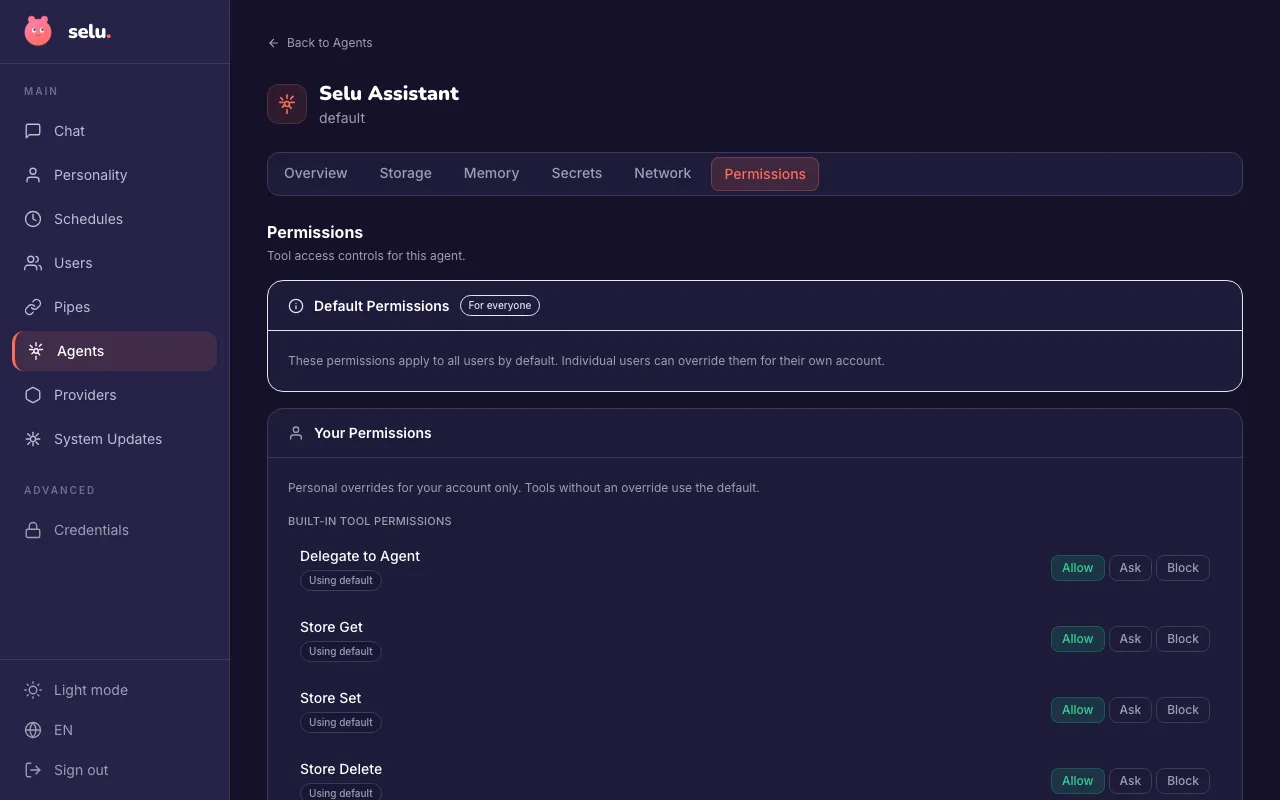
Section titled “Configuring policies”Tool policies are configured per-agent from the agent detail page:
- Go to Agents in the admin interface.
- Click on the agent you want to configure.
- Navigate to the Permissions tab.
- You’ll see sections for both capability tools and built-in tools.
- For each tool, select Allow, Ask, or Block using the radio buttons.
- Changes take effect immediately — no need to restart the agent.
Global defaults vs. personal overrides
Section titled “Global defaults vs. personal overrides”- Global defaults (admin only): Set the default policy that applies to all users unless they create a personal override.
- Personal overrides: Any user can override the global default for their own account. Tools without an override use the global default.
The approval flow
Section titled “The approval flow”When a tool is set to Ask, the approval process depends on which channel you’re using:
Web chat (interactive)
Section titled “Web chat (interactive)”- The agent decides it needs to use the tool.
- Selu pauses and shows an inline confirmation dialog with the tool details.
- You can click Approve or Deny to continue.
- If approved, the agent proceeds immediately.
iMessage, Telegram (non-interactive channels)
Section titled “iMessage, Telegram (non-interactive channels)”- The agent decides it needs to use the tool.
- Selu sends you a message describing what the agent wants to do.
- Reply with any message to approve the action.
- The agent will then proceed with the tool call.
Built-in tools
Section titled “Built-in tools”All agents have access to these built-in tools, which you can control just like capability-specific tools:
| Tool | Description | Default policy |
|---|---|---|
| Delegate to Agent | Hand off tasks to other specialist agents | Ask |
| Store Get/Set/Delete/List | Persist key-value data between conversations | Allow |
| Memory Remember/Forget/Search/List | Save and retrieve long-term memory notes | Allow |
| Set Schedule | Create recurring automated tasks | Allow |
| Set Reminder | Create one-time future reminders | Allow |
How default policies are determined
Section titled “How default policies are determined”When you install a new agent, each tool gets a default policy based on what the agent author recommended:
- If the agent author set a recommended policy for a tool, that becomes the default.
- If no recommendation is set but the tool is marked as requiring confirmation, the default is Ask.
- If neither is set, the tool defaults to Block as a safe fallback.
Agent authors can recommend a policy for each tool, but you always have the final say.
Managing policies at scale
Section titled “Managing policies at scale”For organizations with many users:
- Set global defaults as an admin to establish baseline security.
- Train users on when to override defaults based on their comfort level.
- Review tool usage regularly to understand which tools are being used and how often approvals are requested.
Per-user network controls
Section titled “Per-user network controls”In addition to tool policies, you can control network access on a per-capability basis. This provides granular security control over what external services your agents can reach:
Network access overrides
Section titled “Network access overrides”For each capability in an agent, you can override the default network behavior:
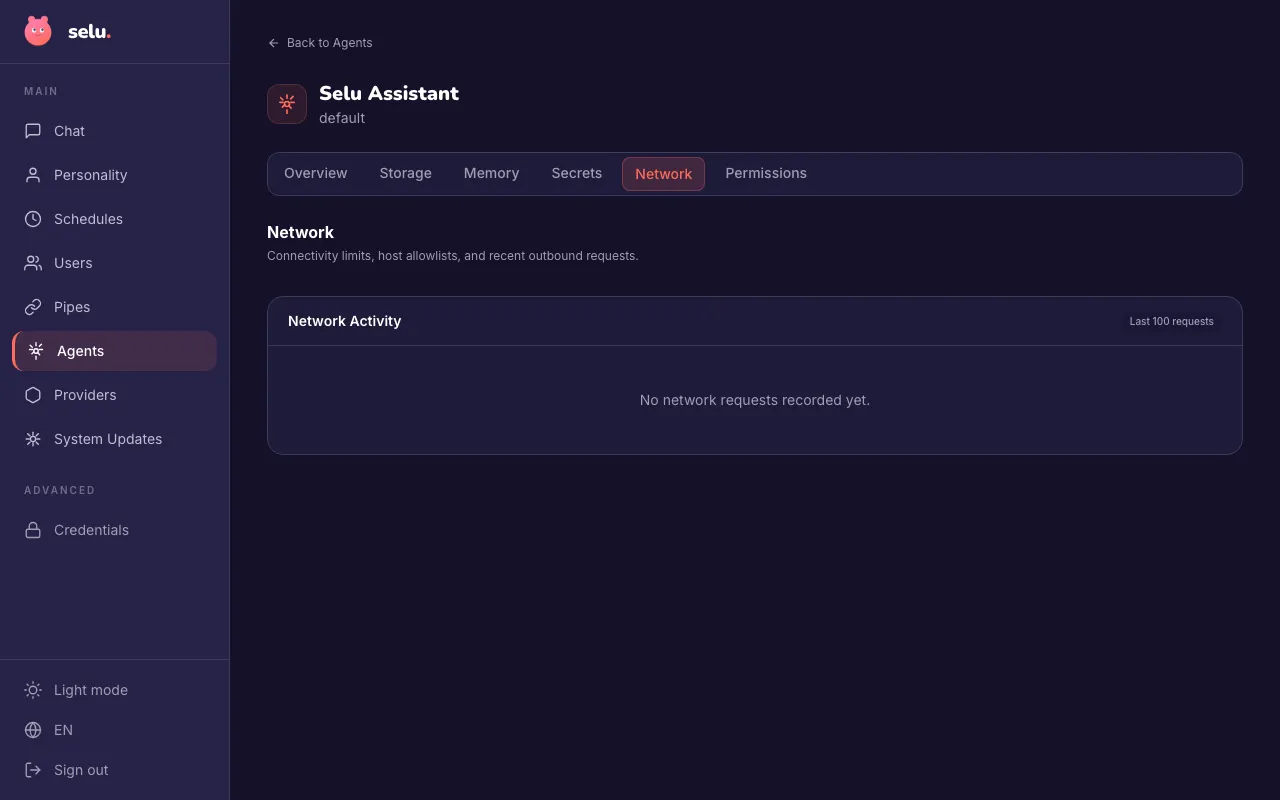
- Go to the agent’s Network tab
- For any capability, choose Allow or Deny for network access
- Deny completely blocks all network requests for that capability
- Allow respects the capability’s allowlist configuration
Host-level policies
Section titled “Host-level policies”When a capability has allowlist-based networking, you can fine-tune which hosts it can access:
Default hosts
Section titled “Default hosts”These come from the agent’s configuration:
- Set any default host to Deny to block access to that service
- Keep as Allow to permit access as intended
Custom hosts
Section titled “Custom hosts”Add your own host rules for additional control:
- Enter hosts like
pypi.org:443orapi.example.com - Set each to Allow or Deny as needed
- Remove custom entries you no longer need
These network controls work alongside tool policies to give you comprehensive security control over agent behavior.