Skip to content

iMessage

With iMessage support, you can talk to your Selu agents right from the Messages app on your iPhone, iPad, or Mac. This works through BlueBubbles, an open-source bridge that connects iMessage to external services.

A Mac

BlueBubbles requires a Mac that stays on and connected to the internet. A Mac Mini works great for this.

An Apple ID

The Mac needs to be signed into iMessage with the Apple ID you want your agent to use.

BlueBubbles server

Install the BlueBubbles server app on your Mac. Download it from bluebubbles.app.

  1. Install BlueBubbles on your Mac and follow its setup wizard. You’ll create a server password and configure a connection method (Firebase is recommended for reliability).
  2. Enable the API in BlueBubbles under Settings → API/Developer. Note the server URL and password.
  3. Keep the Mac awake — Disable sleep in System Settings so BlueBubbles stays connected.

Once BlueBubbles is running:

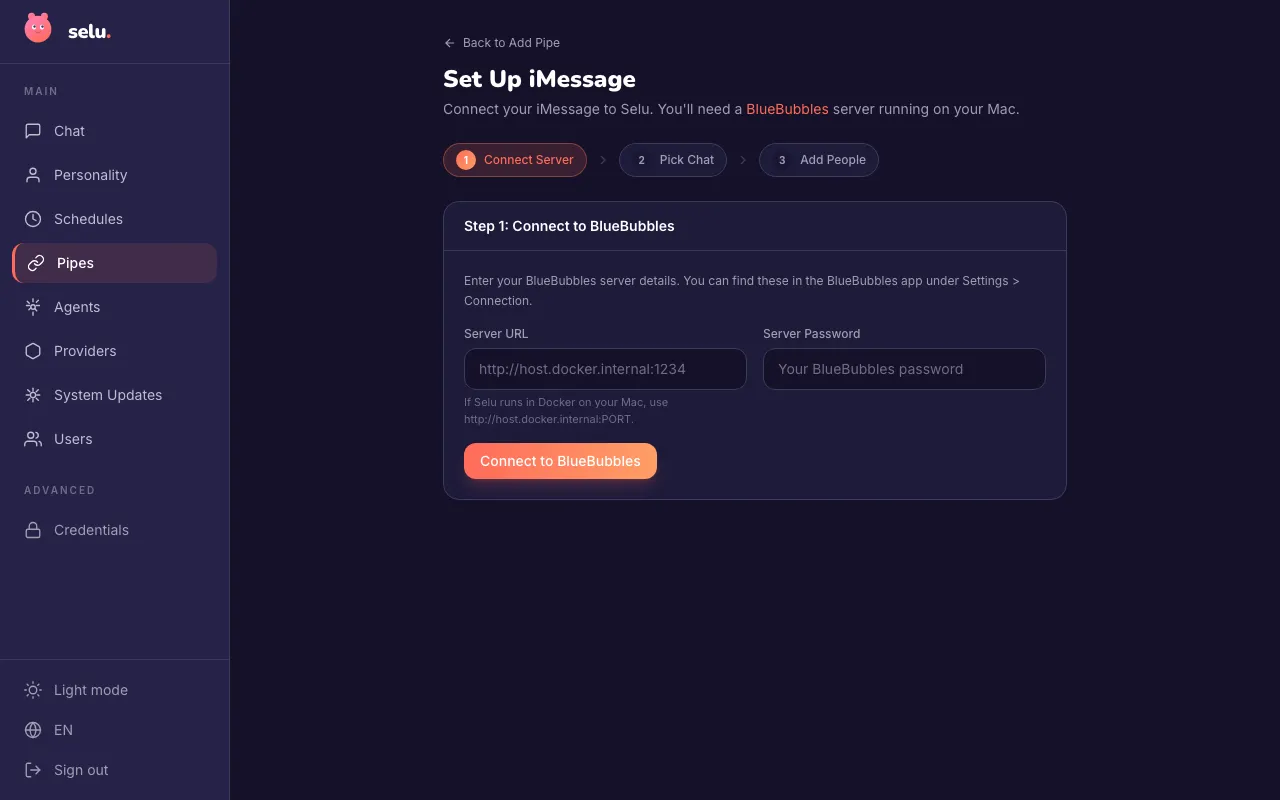
The iMessage pipe setup wizard showing the Connect Server step with Server URL and Password fields.

  1. Open Selu and go to Pipes.
  2. Click Add Pipe and select iMessage.
  3. Enter your BlueBubbles server URL and password.
  4. Save your pipe.

That’s it. Send an iMessage to the Apple ID on your Mac, and your Selu agent will reply.

Selu automatically provides agents with date and time context in your configured timezone. When you mention relative dates like “tomorrow” or “next Friday,” your agent understands them correctly based on your local time, not server time.

The system includes explicit anchors for:

  • Current date and time in your timezone
  • Today’s date
  • Tomorrow’s date
  • Yesterday’s date

This ensures accurate scheduling and date-based requests across all time zones.

When your agents need to ask permission to use tools, iMessage handles approvals smoothly:

  1. Agent needs to use a tool set to Ask policy
  2. You receive a message: “Before I continue: [action description]. Reply to approve this action.”
  3. Reply with “yes”, “ok”, “approve” or similar to approve
  4. Reply with “no”, “cancel”, “deny” to block the action

Selu automatically matches your approval replies to the right tool request:

  • Thread replies (preferred): When you reply directly to the approval message, Selu knows exactly which tool you’re approving.
  • Simple replies: If thread information is missing but you have only one pending approval, any “yes”/“no” reply will work.
  • Multiple pending approvals: When several tools need approval, you must reply directly to specific approval messages to avoid confusion.
  • Latency — There may be a slight delay (1–3 seconds) compared to web chat, since messages pass through the BlueBubbles bridge.
  • One Apple ID per pipe — Each iMessage pipe uses a single Apple ID. If you need multiple, set up additional BlueBubbles instances.

If messages aren’t getting through:

  1. Confirm BlueBubbles shows a green “Connected” status.
  2. Check that the server URL in Selu matches the one in BlueBubbles exactly.
  3. Restart the BlueBubbles server if it’s been running for a long time.
  4. Review the Selu logs for connection errors: docker logs selu-server.

If tool approvals aren’t working:

  1. Check that you’re replying to the approval message (not starting a new conversation thread)
  2. Try simple replies like “yes” or “no” instead of long explanations
  3. If you have multiple pending approvals, make sure to reply to each specific approval request

If replies aren’t being matched correctly:

  1. Try replying directly by swiping right on the approval message (iPhone/iPad) or right-clicking and selecting “Reply” (Mac)
  2. Use simple approval words like “approve”, “yes”, “deny”, “no”
  3. Check if you have multiple conversations with the same agent — approvals only work within the same conversation thread