
WhatsApp is one of the most popular messaging platforms worldwide. With Selu’s managed WhatsApp bridge, you can chat with your agents directly from WhatsApp on any device — no extra apps needed.
How it works
Section titled “How it works”Selu runs a managed bridge container that connects to WhatsApp using the Baileys library (the same technology behind WhatsApp Web). The bridge:
- Pairs with your WhatsApp account via QR code
- Receives messages from selected chats
- Forwards agent responses back to WhatsApp
- Maintains the connection automatically
All WhatsApp bridge management is handled by Selu — no manual Docker commands or configuration files needed.
Step 1: Set up the WhatsApp pipe
Section titled “Step 1: Set up the WhatsApp pipe”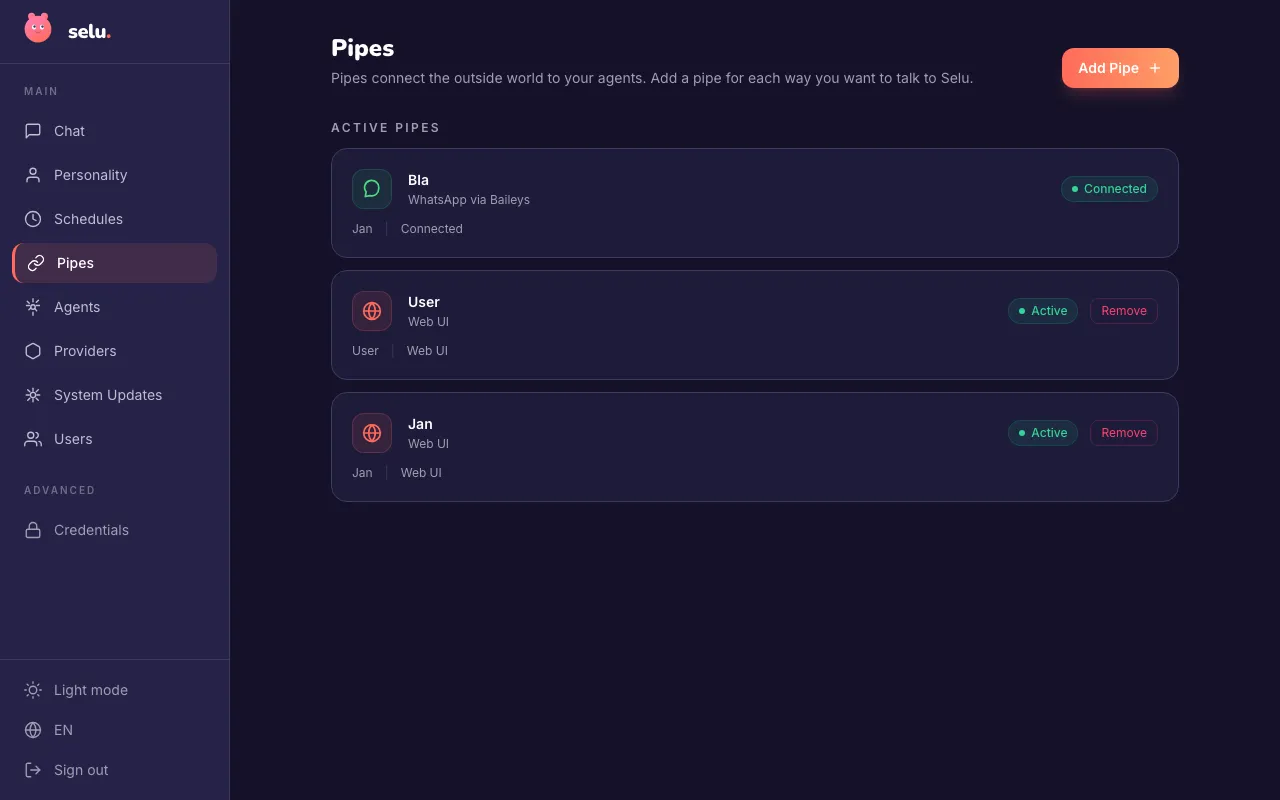
- Open Selu and go to Pipes.
- Click Add Pipe and select WhatsApp.
- Give your pipe a descriptive name like “Personal WhatsApp” or “Team WhatsApp”.
- Optionally, add an authorization header if your setup requires it (most users can leave this blank).
- Click Set Up WhatsApp.
Selu will automatically download and start the WhatsApp bridge container in the background. This may take a minute or two on first setup.
Step 2: Pair your phone
Section titled “Step 2: Pair your phone”- After setup completes, you’ll see a QR code on the WhatsApp detail page.
- Open WhatsApp on your phone.
- Go to Settings → Linked Devices (or Settings → WhatsApp Web on older versions).
- Tap Link a Device and scan the QR code.
- Wait for the connection status to show “Connected”.
Step 3: Choose allowed chats
Section titled “Step 3: Choose allowed chats”By default, your WhatsApp pipe won’t respond to any messages — you need to explicitly allow specific chats for security.
- On the WhatsApp detail page, scroll to “Who can use this pipe?”.
- Use the chat search to find conversations from your WhatsApp account.
- Select a chat and choose which Selu user it should map to.
- Click Add person.
Step 4: Start chatting
Section titled “Step 4: Start chatting”Send a message in any of your allowed WhatsApp chats. Your Selu agent will receive the message and reply directly in WhatsApp — just like texting a friend.
Self-messaging support
Section titled “Self-messaging support”You can message yourself on WhatsApp to create a private chat with your agents. This is especially useful for personal assistants or quick queries.
Tool approvals in WhatsApp
Section titled “Tool approvals in WhatsApp”Just like Telegram and iMessage, WhatsApp supports tool approvals when your agents need permission to act:
- Agent needs to use a tool with Ask policy
- You receive a WhatsApp message describing the action
- Reply with “yes”, “approve”, “ok” or similar to allow it
- Reply with “no”, “deny”, “cancel” to block it
Since WhatsApp doesn’t have built-in reply threading, Selu matches your response automatically when there’s only one pending approval. If multiple tools need approval at once, respond to each one in order.
Security and privacy
Section titled “Security and privacy”Only explicitly allowed chats can reach your agents. Even if someone has your phone number, they can’t interact with Selu unless you’ve added their chat to the allowlist.
The WhatsApp bridge runs on your Selu server — no messages are sent to third-party services except for the agent’s configured LLM provider.
The bridge uses WhatsApp’s official multi-device protocol with end-to-end encryption. Your login session is stored locally in an encrypted Docker volume.
Managing your WhatsApp pipe
Section titled “Managing your WhatsApp pipe”Viewing connection status
Section titled “Viewing connection status”The WhatsApp detail page shows:
- Bridge status — Whether the bridge container is running
- Phone connection — Connection state with WhatsApp servers
- WhatsApp account — Which phone number is connected
- Allowed chats — Who can message your agents
Troubleshooting connection issues
Section titled “Troubleshooting connection issues”If WhatsApp messages aren’t reaching Selu:
- Check the bridge status — Make sure it shows “Ready” on the detail page.
- Verify phone connection — The connection state should be “Connected” or “Open”.
- Confirm chat allowlist — The sender must be in your allowed chats list.
- Test with a simple message — Try “hello” first before complex requests.
Refreshing the connection
Section titled “Refreshing the connection”If the connection becomes unstable:
- Go to the WhatsApp detail page.
- Note the current connection state.
- If it shows “Disconnected” or has errors, try refreshing the page.
- If problems persist, you may need to re-pair by scanning a new QR code.
Removing WhatsApp integration
Section titled “Removing WhatsApp integration”To disconnect WhatsApp:
- Go to Pipes and find your WhatsApp pipe.
- Open the detail page.
- Scroll to the bottom and click Remove WhatsApp pipe.
- Confirm the removal.
This will:
- Stop the bridge container
- Clear your WhatsApp login session
- Remove all allowed chat mappings
- Disable message routing from WhatsApp
Limitations
Section titled “Limitations”- One pipe per instance — Selu currently supports one active WhatsApp pipe at a time
- Phone dependency — Your phone must have internet access to maintain the WhatsApp Web session
- Rate limits — WhatsApp may throttle or block accounts that send too many automated messages
- Group chat complexity — Agent responses in group chats may not always thread properly with the original message
Advanced configuration
Section titled “Advanced configuration”Authorization headers
Section titled “Authorization headers”If you’re running Selu behind additional security layers, you can configure the bridge to include custom authorization headers when connecting back to Selu:
- During setup, fill in the “Authorization Header” field
- Include the full header value (e.g.,
Bearer your-secret-token) - This header will be sent with all messages from the bridge to Selu
Network configuration
Section titled “Network configuration”The WhatsApp bridge automatically detects your Docker network configuration. If you’re using a custom Docker setup:
- Bridge port — The bridge listens on port 3200 inside its container
- Network discovery — Selu detects your Docker Compose network automatically
- Fallback mode — If network detection fails, the bridge uses host networking with port mapping
Data persistence
Section titled “Data persistence”WhatsApp login sessions are stored in a Docker volume called selu-whatsapp-bridge-data. This volume contains:
- WhatsApp authentication credentials
- Session state and encryption keys
- Chat metadata and message history
Troubleshooting
Section titled “Troubleshooting”Bridge won’t start
Section titled “Bridge won’t start”If the WhatsApp bridge fails to start:
- Check Docker — Ensure Docker is running and accessible to Selu
- Verify permissions — The Selu container needs access to the Docker socket
- Check system resources — The bridge needs at least 512MB of RAM
- Review logs — Check the Selu logs for bridge startup errors
QR code doesn’t appear
Section titled “QR code doesn’t appear”If you don’t see a QR code on the detail page:
- Wait a moment — The bridge may still be starting up
- Refresh the page — QR codes are generated dynamically
- Check bridge status — Ensure the bridge shows as “Running”
- Restart if needed — Remove and recreate the pipe if the bridge is stuck
Messages not reaching agents
Section titled “Messages not reaching agents”If WhatsApp messages aren’t being processed:
- Check allowed chats — Verify the sender is in your allowlist
- Confirm pipe status — The pipe must be active and connected
- Test agent response — Try messaging from the web chat first
- Review message format — Very long messages or media files may be filtered
Performance issues
Section titled “Performance issues”If WhatsApp responses are slow:
- Check system load — Multiple agents or complex tasks can cause delays
- Verify network — Poor internet connectivity affects both directions
- Monitor bridge resources — The bridge may need more memory for busy accounts
- Review agent complexity — Simpler agents typically respond faster