
Authentication
Every Selu instance is protected by user accounts. You need to sign in before you can chat with agents, manage settings, or view any data.
Signing in
Section titled “Signing in”When you open Selu in your browser, you’ll see the login screen. Enter your username and password, then click Sign in.
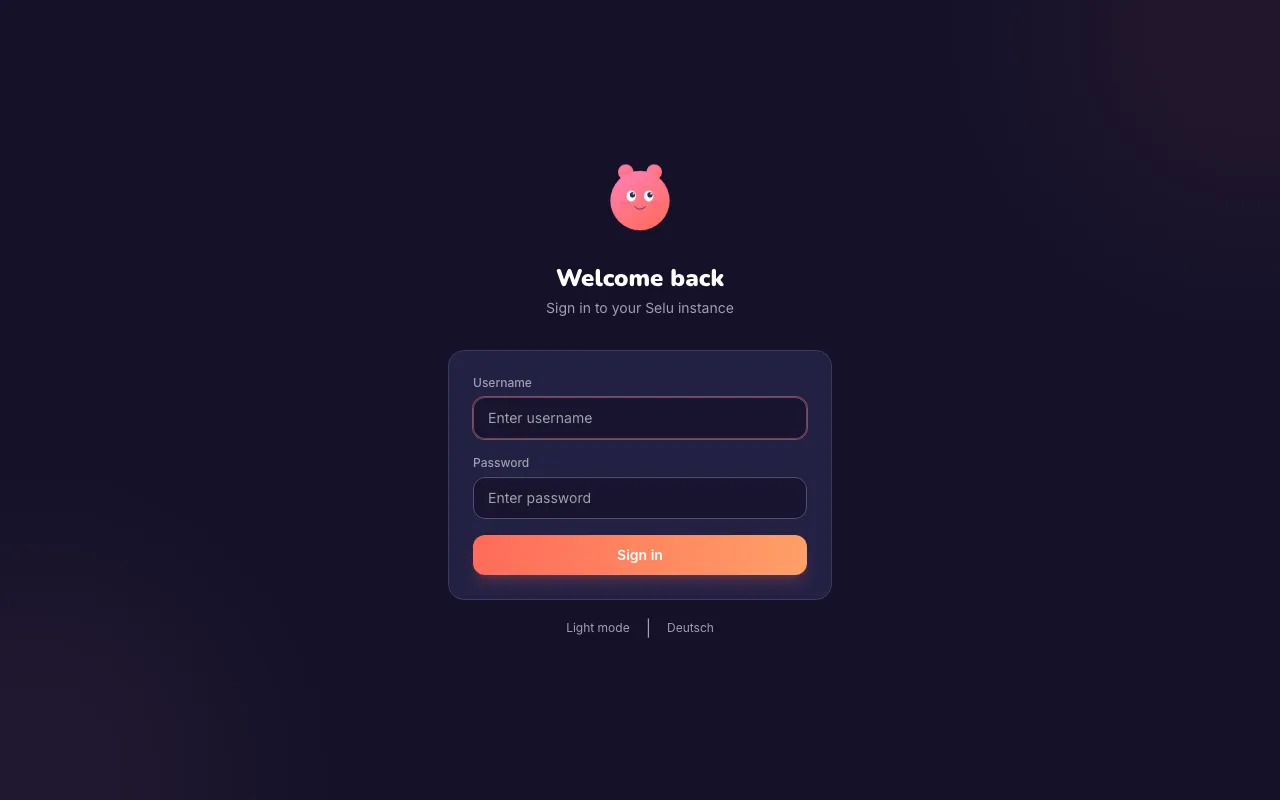
Your administrator creates your account and gives you your initial credentials. If you’re setting up Selu for the first time, you’ll create the first admin account during the initial setup wizard instead.
Changing your password
Section titled “Changing your password”You can change your password at any time from the Users page.
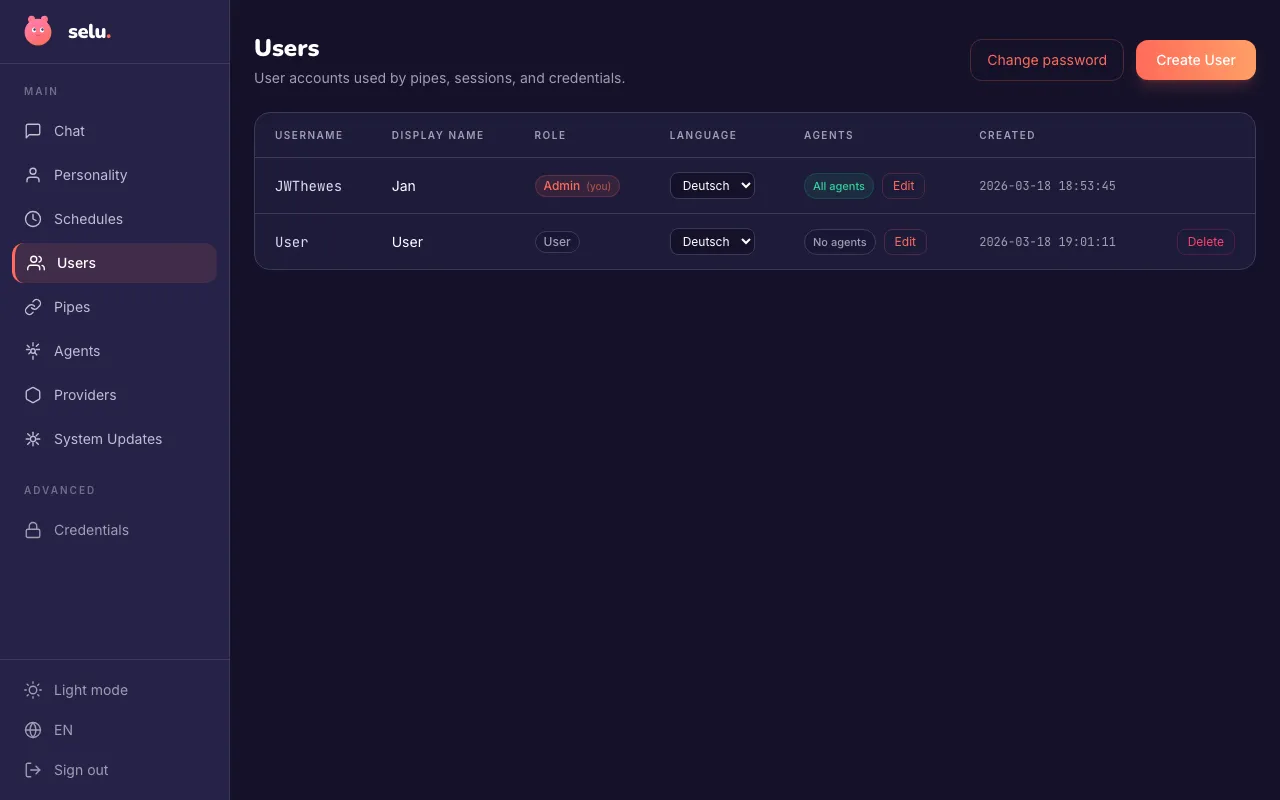
- Click Change password in the top-right corner of the Users page.
- Enter your current password.
- Enter your new password (minimum 8 characters).
- Confirm the new password.
- Click Update password.
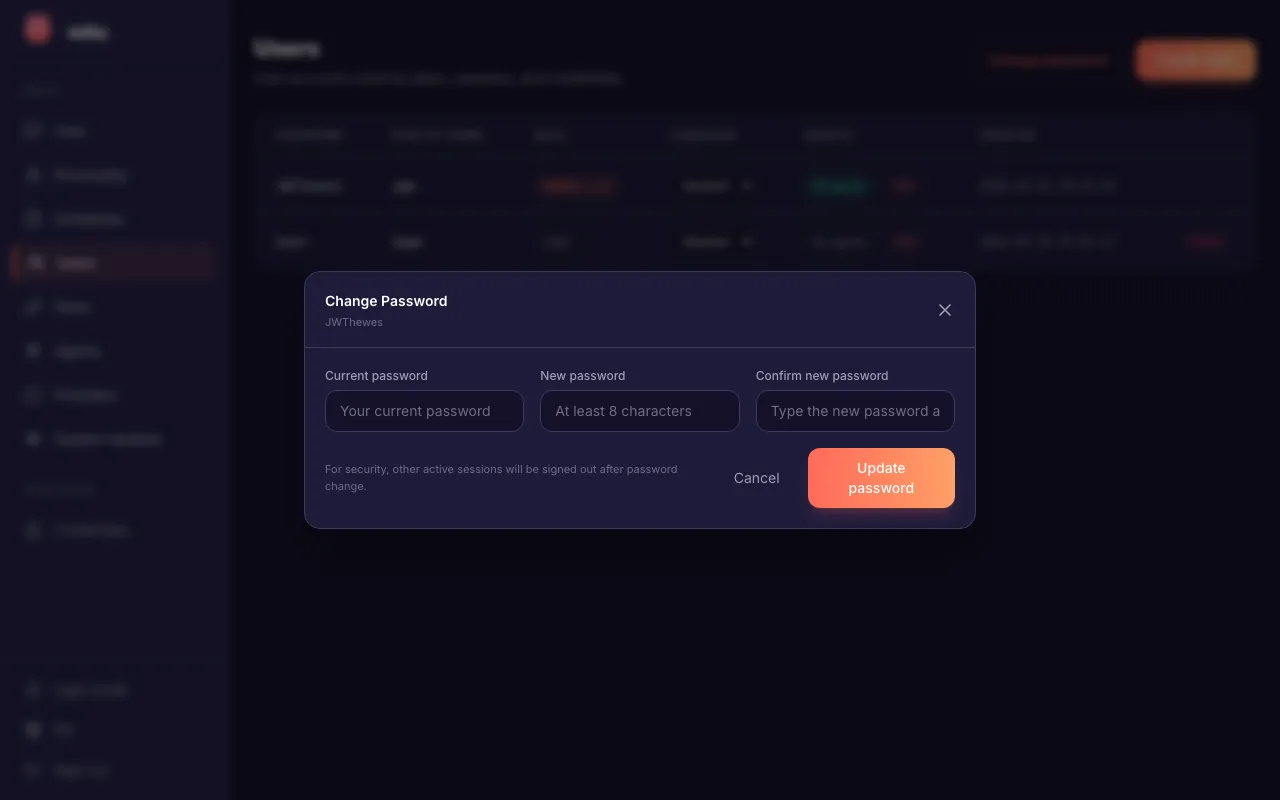
After changing your password, all your other active sessions (for example, on other devices) are automatically signed out. Your current session stays active.
Recovering a lost password
Section titled “Recovering a lost password”If you forget your password, you cannot reset it yourself through the web interface. An administrator needs to reset it for you using the command line.
For administrators: Run the following command on the server where Selu is running:
echo 'new-password-here' | selu-orchestrator reset-password --username alice --password-stdinReplace alice with the actual username and new-password-here with the new password (minimum 8 characters).
This immediately updates the password and signs the user out of all active sessions, so they’ll need to log in again with the new password.
Sessions
Section titled “Sessions”When you sign in, Selu creates a session that keeps you logged in for 7 days. After that, you’ll need to sign in again.
Your session is stored in a secure cookie with the following protections:
- HttpOnly — Scripts on the page cannot read your session, protecting against cross-site scripting.
- Secure — When Selu runs over HTTPS, the cookie is only sent over encrypted connections.
- SameSite — The cookie is not sent with cross-site requests, protecting against cross-site request forgery.
You can sign out at any time by clicking Sign out in the bottom-left corner of the sidebar.
First-run setup
Section titled “First-run setup”When Selu starts for the very first time with an empty database, it shows a one-time setup page instead of the login screen. This is where you create the first admin account.
Once the first account exists, the setup page is permanently disabled — it cannot be accessed again, even by typing the URL directly. This prevents anyone from creating unauthorized admin accounts after your instance is running.